What “remove X from photo” means with AI now
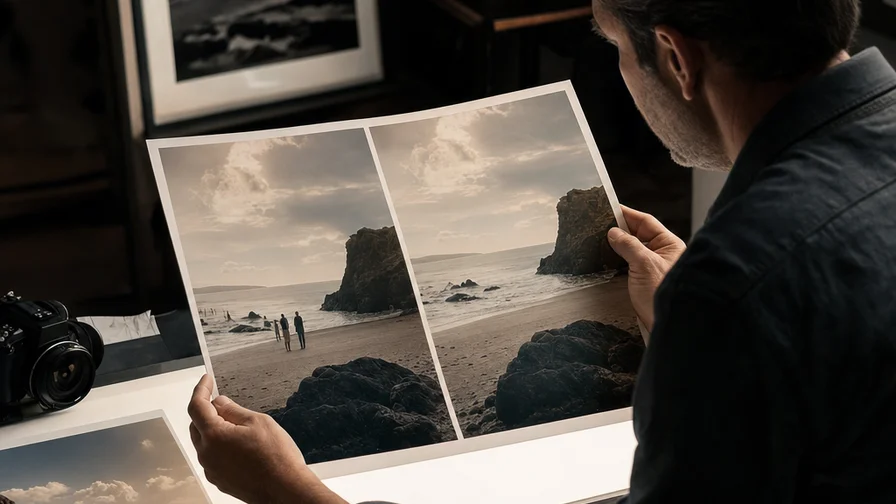
Until recently, scrubbing an unwanted object out of a photo meant lasso tools, rubber-stamp cloning, and patience. Instruction-following AI changed that. Instead of painting a mask by hand, you tell the model what to remove and what to keep. It follows the instruction, reconstructs the background from surrounding context, and hands back a clean plate—often in one pass.
On Nexvy, the fastest way to do this is Nano Banana, an instruction-following editor built for object removal and background reconstruction. You upload the image, type a short command—“remove the tourist on the left; restore the stone steps and railing”—and let the model rebuild the occluded area. No manual masking. No layer juggling. The model infers textures, perspective, and lighting from the pixels it can see, then fills the gap so it looks like the person, text, or clutter was never there.
This is different from classic inpainting in two ways:
- No brushwork: You don’t need to define a region. The prompt itself targets what should disappear and what should remain intact.
- Context-heavy rebuilds: Nano Banana uses surrounding color, line direction, and structure to re-create missing detail. Stone walls keep their grout. Water keeps its reflections. Asphalt keeps its grain.
Nexvy unifies 30+ image and media models—FLUX, Midjourney, GPT Image 2, Ideogram, Seedream for images; Veo 3, Kling, Sora 2 for video; ElevenLabs and GPT‑4o Audio for voice; Suno and Lyria for music—but for “remove X from photo,” Nano Banana is the tool you’ll reach for most. If your scene is unusually complex or the remove area is very large, you can step up to Nano Banana Pro for more solid reconstructions. More on that below.
Fast workflow on Nexvy: from upload to clean plate
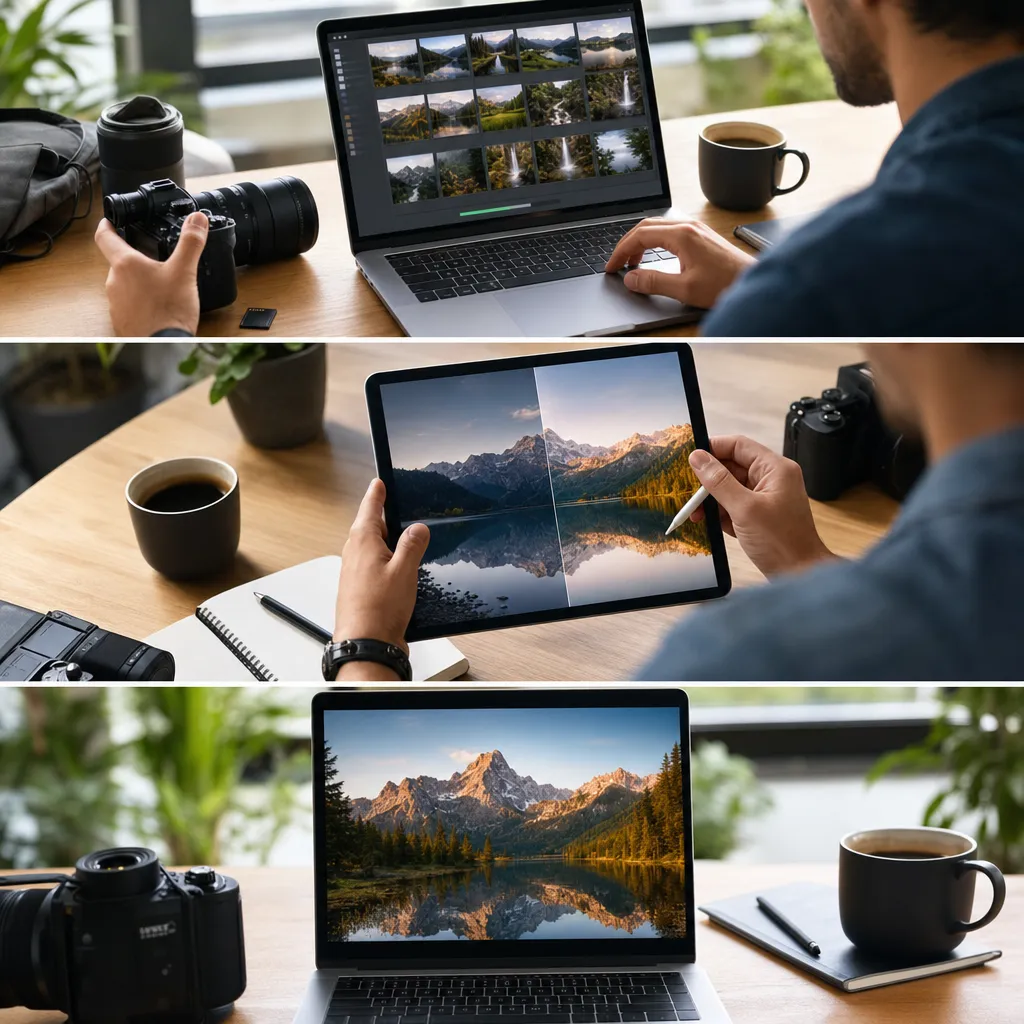
You can get professional-looking removals in under a minute. Here’s a simple, repeatable flow that works across travel shots, portraits, product photos, and social posts.
1) Upload
Open Nano Banana on Nexvy and drop in your image. Higher-resolution files give the model more to work with. If you have multiple formats (RAW, JPEG, PNG), use the one with the least compression artifacts.
2) Describe exactly what to remove
Give a short, specific instruction. Call out position, clothing, colors, or shapes. Then tell the model what to restore behind the removal area.
- “Remove the man in the red jacket standing on the left stairs; restore the stone steps and metal handrail behind him.”
- “Erase the white caption at the bottom right; reconstruct the sand and small pebbles.”
3) Protect what must not change
Add a keep clause for important elements. This steers the model away from your subject and preserves brand assets, faces, or product edges.
- “Keep the central subject (woman in blue dress) unchanged.”
- “Keep the product label, reflections, and shadows intact.”
4) Generate and compare
Run Nano Banana. You’ll get one or more candidates. Zoom to 100–200% and scan for seams, repeats, or soft patches where the removal happened. If something’s off, you can revise the prompt and run a second pass in seconds.
5) Export
Save the best result. Need more muscle for a tough scene? Switch to Nano Banana Pro, which handles larger gaps, complex textures, and faces near the edit region with fewer artifacts. On Nexvy, removal starts from 60 credits, so it’s cost-effective to iterate.
Prompt recipes: remove people, text, stickers, wires, clutter, and clean product shots
Use these concise prompt templates as starting points. Each includes a “remove,” a “rebuild,” and a “keep” clause. Swap in your scene’s specifics and run.
Remove a person or tourist from a travel photo
Target by clothing color, position in frame, or activity. Then ask for the plausible background: steps, tiles, foliage, water, sky, architecture.
- Prompt A: “Remove the tourist in the red jacket on the left staircase; restore the stone steps, metal rail, and wall texture behind him; keep the main subject in the center unchanged.”
- Prompt B: “Erase the couple standing on the far right by the fountain; reconstruct the fountain edge, water ripples, and cobblestones; keep the cathedral and central skyline intact.”
- Prompt C: “Remove the person with a yellow umbrella in the mid‑ground; rebuild the wet pavement and consistent reflections; preserve the tree line and horizon.”
Tips:
- Distance matters. If the person is close to your subject, add: “do not alter the subject’s edges, hair, or shadows.”
- Surface continuity helps. Name the material: “polished marble,” “weathered wood,” “painted stucco,” “chain‑link fence.”
Remove text or a caption baked into an image
Labels and captions often sit on flat surfaces; you want that surface back with texture and grain.
- Prompt A: “Erase the white caption at the bottom right; restore sandy beach texture with small pebbles and footprints; keep waves and horizon unmodified.”
- Prompt B: “Remove the black watermark text across the sky; rebuild natural blue gradient and light cloud wisps; maintain mountain edges.”
- Prompt C: “Delete the large bold text over the brick wall; restore brick pattern, mortar lines, and slight grime; keep the poster on the left intact.”
Important: Only remove text from images you have the rights to edit. Do not remove copyright watermarks from work you don’t own or have permission to modify.
Remove stickers or emoji covering a face
When stickers obscure facial features, be clear about what to restore and how natural it should look. If the sticker covers a large portion of the face, Nano Banana Pro is often the better choice.
- Prompt A: “Remove the heart‑emoji sticker covering the child’s nose and mouth; reconstruct realistic facial features consistent with the photo; keep hair, lighting, and background unchanged.”
- Prompt B: “Erase the cartoon star over the woman’s left eye; restore eye, eyebrow, and skin texture to match the right side; keep earrings and hairline intact.”
- Prompt C: “Remove the smiley sticker from the man’s beard area; rebuild beard texture and skin tone; avoid altering the shirt collar.”
Tip: Faces are detail‑sensitive. If the result looks uncanny, switch to Nano Banana Pro and add: “match identity and proportions across both sides of the face; avoid symmetry artifacts.”
Remove power lines, trash, or scene clutter
Linear clutter benefits from explicit direction about straight lines, sky gradients, or foliage continuity.
- Prompt A: “Remove the overhead power lines crossing the sky; reconstruct a smooth blue sky gradient and natural cloud edges; keep rooftops and antennas untouched.”
- Prompt B: “Erase the trash and plastic bottles on the foreground path; restore compacted dirt texture and small stones; keep shoe prints and shadows consistent.”
- Prompt C: “Remove the street sign pole near the tree; rebuild the tree trunk, bark texture, and leaves; keep the sidewalk curb line straight.”
Tip: For repeated patterns (tile, brick, picket fences), mention “continue pattern with correct spacing” to avoid repeated or warped tiles.
Clean up a product shot background
Product frames benefit from precise “keep” clauses about edges, labels, and shadows. Describe the background you want after removal: seamless, gradient, or textured.
- Prompt A: “Remove the scuffs and tape residue on the backdrop; restore a seamless white background with soft studio falloff; keep product edges, label, and cast shadow crisp.”
- Prompt B: “Erase the stand and wire behind the shoe; reconstruct the gradient gray sweep; keep specular highlights and tread detail unchanged.”
- Prompt C: “Remove dust, crumbs, and reflections on the tabletop; rebuild matte wood grain consistent with the surrounding planks; keep the mug and handle edges sharp.”
Tip: If your product has fine texture (woven fabric, brushed metal), add “preserve microtexture and anisotropic highlights” so the model doesn’t over‑smooth the subject.
When to switch to Nano Banana Pro

Most quick removals land perfectly with Nano Banana. Move up to Nano Banana Pro when the job crosses one or more of these thresholds:
- Large removal areas: If the region is bigger than a third of the frame (big crowds, big text, or a vehicle close to camera), Pro maintains structure better across the gap.
- Complex, repeating, or curved patterns: Murals, geometric tiles, lattices, tartan fabrics, chain‑link fences, or rippling water with reflections.
- Faces and hands close to the edit zone: Pro tends to keep proportions, skin texture, and anatomical cues tighter when you’re rebuilding near delicate features.
- Perspective‑heavy architecture: Long railings, receding lines, window grids, or brick walls that must stay straight and convergent.
How to prompt for Pro:
- State the pattern rules: “continue tile pattern with correct grout spacing and perspective; align to vanishing point at center.”
- Call out identity constraints near faces: “maintain the subject’s facial identity, asymmetry, and natural skin texture; avoid smoothing.”
- Lock composition: “do not alter framing, focal length look, or global lighting.”
Artifacts you might see—and the one‑minute fix
Even great removals can trip on edges or textures. Most issues resolve with a targeted second pass using a more explicit instruction. Here’s a quick triage list and fixes that work.
Blurry patches where the object was
Why it happens: The model averages texture where it’s unsure. Common on asphalt, sand, skies, and walls.
Fix prompt: “Sharpen local detail where the removal happened; match surrounding [material: asphalt/sand/stucco] grain and direction; avoid altering nearby edges.” Run Nano Banana again on the same image (use your new prompt on the result).
Repeated or tiled textures
Why it happens: The model latches onto a nearby patch and repeats it.
Fix prompt: “Vary texture subtly; avoid repeating patterns; keep natural randomness in [grass/leaves/brick]. Maintain consistent lighting.” You can also add, “introduce small imperfections (scuffs/pebbles) to break repetition.”
Wavy or bent straight lines
Why it happens: Perspective lines lose their anchor when a big object is removed.
Fix prompt: “Straighten and continue the [railing/brick courses/fence] with correct perspective convergence; preserve horizon level; do not change subject.” If the bend is severe, switch to Nano Banana Pro and include “align to the existing vanishing point.”
Shadows or reflections look off
Why it happens: Removing an object can create inconsistent light clues.
Fix prompt: “Rebuild consistent shadows and reflections based on the existing light direction (left‑to‑right); ensure softness and density match surrounding areas; do not add new objects.” Also try: “remove leftover phantom shadows from the previous object.”
Color seams and banding in skies or gradients
Why it happens: Compression or partial reconstruction can make banding obvious.
Fix prompt: “Smooth gradient transition in the [sky/wall]; maintain natural color range without banding; keep edges of buildings and trees crisp.”
Residual edges or text ghosts
Why it happens: Partial removal leaves faint outlines.
Fix prompt: “Fully remove residual edges/ghosting of the previous [text/object]; rebuild background texture seamlessly; keep nearby details untouched.”
General second‑pass tactics:
- Be more literal. Name materials, line direction, and light angle. Vague prompts lead to average textures.
- Add a “keep” clause for what must not change. Protects the subject while the model tightens the fix.
- Reduce ambition. If you tried a huge multi‑object removal, tackle it in two prompts: foreground first, then background tidying.
Responsible editing: limits, context, and ethics
AI can clean a photo in seconds. That power comes with boundaries.
- Don’t remove watermarks from copyrighted work you don’t own. If you didn’t license the image or don’t have permission, leave the mark intact. Watermarks exist to signal ownership and prevent misuse.
- Respect context in news or documentary images. Removing elements that change meaning (protest signs, identifying badges) can mislead. Label edited images when context matters.
- Portrait consent and identity. Reconstructing faces—even to remove stickers—should respect the subject’s privacy and wishes. Don’t fabricate or swap identities.
- Brand integrity. In product work, never remove required safety labels or alter regulated markings.
Nexvy supports responsible editing by centering user control and clear intent. The platform is designed to remove distractions and restore what the camera would have seen, not to deceive. Use the tools to tell the truth of the scene more clearly—clean up trash, tourists, or stray wires—without crossing into misrepresentation.
Try it: clean up any photo in seconds
If your to‑do list says “remove object from photo,” stop wrestling with selection tools. On Nexvy, you can upload, describe the issue, and let Nano Banana reconstruct the background—often perfectly—on the first try. For tougher edits, Nano Banana Pro scales to big gaps, complex patterns, and face‑adjacent regions with fewer artifacts.
Nexvy brings 30+ AI models for images, video, audio, and music into one place, so you’re not hopping between apps when a project spans formats. Start removing objects, people, and text overlays in a couple of clicks, from 60 credits. Try it on nexvy.ai and see how fast your photos get cleaner, sharper, and ready to share.