Google's latest video generation model, Veo 3.1, represents a significant leap forward in AI-powered video creation. Building on the foundation of its predecessor, this updated model brings improved quality, improved prompt understanding, and most importantly, native audio generation capabilities that make it a game-changer for content creators.
If you've been following the AI video generation space, you know how quickly things move. Just when you think you've mastered one tool, another breakthrough emerges. Veo 3.1 isn't just an incremental update—it's a substantial improvement that addresses many of the limitations creators faced with earlier video AI models.
What Makes Veo 3.1 Special
The standout feature of Veo 3.1 is undoubtedly its native audio generation. Unlike previous models that produced silent videos requiring separate audio tracks, Veo 3.1 can generate synchronized sound effects, ambient audio, and even music that matches your video content perfectly.
This audio capability isn't just an add-on feature—it's deeply integrated into how the model understands and creates content. When you describe a scene with crashing waves, you'll hear the ocean. Request a busy city street, and you'll get the authentic sounds of traffic and pedestrians.
The visual quality has also seen substantial improvements. Veo 3.1 produces sharper, more coherent videos with better temporal consistency—meaning objects and people maintain their appearance more reliably across frames.
Understanding Native Audio Generation
Native audio generation in Veo 3.1 works by analyzing your text prompt and generating appropriate soundscapes simultaneously with the visual content. This isn't just random audio slapped onto footage—the model understands the relationship between what's happening visually and what should be heard.
The audio generation responds to both explicit and implicit cues in your prompts. If you write "thunder rumbling in the distance," you'll get that specific audio element. But even if you just describe "a stormy night," the model will infer appropriate wind, rain, and atmospheric sounds.
One important note: the audio quality varies depending on your prompt specificity. More detailed audio descriptions generally yield better results than leaving everything to the model's interpretation.
Mastering Camera Movement Prompts
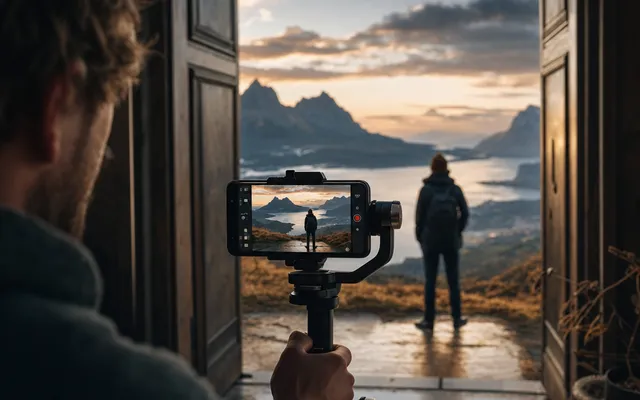
Veo 3.1 excels at understanding and executing camera movements, but the key is using the right terminology. The model responds well to traditional cinematography language, so familiarizing yourself with these terms will dramatically improve your results.
For smooth tracking shots, use phrases like "camera slowly pans left to reveal" or "dolly forward toward the subject." For more lively movement, try "handheld camera following" or "crane shot ascending above."
Static shots work great too—sometimes the most impactful videos come from a well-composed fixed frame. Don't feel pressured to add movement to every video just because you can.
Here's a solid camera movement example you can try:
Cinematic drone shot ascending from ground level, revealing a misty mountain valley at sunrise. Camera starts close to wildflowers in foreground, then smoothly pulls back and rises to show the expansive landscape below.
Duration and Timing Considerations
Veo 3.1 typically generates videos between 5-10 seconds by default, though this can vary based on your prompt and the complexity of the scene. Longer doesn't always mean better—often, a perfectly timed 6-second clip has more impact than a drawn-out 10-second version.
The model handles pacing quite intelligently. Action sequences tend to be shorter and more intense, while serene landscapes might extend longer to let the scene breathe. You can influence timing through your prompt language—words like "quick," "sudden," or "rapid" will create faster-paced content.
If you need longer content, consider creating multiple complementary clips that work well in sequence. This approach often produces more polished results than trying to cram everything into a single extended generation.
Quality Settings and Optimization
When working with Veo 3.1 on Nexvy, you'll want to pay attention to the quality settings that can significantly impact your final output. Higher quality settings take longer to process but deliver noticeably better results, especially for detailed scenes or professional projects.
The resolution and frame rate options affect both visual clarity and file size. For social media content, standard settings often suffice, but for presentations or client work, maxing out the quality settings is usually worth the extra processing time.
Consider your intended use case when selecting settings. A quick concept visualization doesn't need the same quality level as a video that will be displayed on large screens or used in professional contexts.
Practical Prompt Examples
Let's dive into some specific prompts that showcase Veo 3.1's capabilities. These examples are designed to work well on Nexvy and demonstrate different aspects of the model:
For atmospheric storytelling:
Abandoned library with dust particles dancing in golden sunlight streaming through tall windows. Camera slowly dollies through the aisles as old books rustle and pages flutter in a gentle breeze. Distant sound of settling wood and whispered echoes.
For lively action content:
Professional chef's hands rapidly chopping vegetables in a busy restaurant kitchen. Close-up shot with shallow depth of field, capturing the rhythmic knife work. Sizzling pans and kitchen ambiance in background.
For nature and landscape:
Time-lapse of storm clouds gathering over a wheat field. Camera positioned low among the grain stalks, looking up as the sky darkens. Wind building from gentle breeze to strong gusts, with distant thunder approaching.
For urban and lifestyle content:
Neon-lit street in Tokyo at night, rain creating reflections on wet pavement. Handheld camera walking pace, following pedestrians with umbrellas. Ambient city sounds, rain drops, and distant traffic hum.
Ideal Use Cases for Veo 3.1
Veo 3.1 shines in several specific scenarios where its unique capabilities provide the most value. Content creators will find it excellent for B-roll footage, especially when you need atmospheric or establishing shots that would be expensive or difficult to film traditionally.
Marketing teams can use the model for quick concept visualization and social media content. The native audio makes these videos immediately usable without additional post-production steps.
Educational content creators benefit from Veo 3.1's ability to visualize abstract concepts or historical scenarios. The model can create compelling visual metaphors and demonstrations that improve learning materials.
Tips for Better Results
Success with Veo 3.1 often comes down to prompt crafting technique. Start with the key visual elements, then add camera movement, and finish with audio details. This structure helps the model prioritize the most important aspects of your vision.
Be specific about lighting conditions, as they dramatically affect mood and quality. Terms like "golden hour," "overcast," or "dramatic side lighting" give the model clear direction for creating the atmosphere you want.
Don't overlook the power of negative prompting. If you want to avoid certain elements, explicitly mention what you don't want to see. This can prevent common issues like unwanted text, logos, or distracting background elements.
Troubleshooting Common Issues
Even with Veo 3.1's improvements, you might encounter occasional issues. Temporal inconsistency—where objects or people change appearance between frames—can sometimes occur with very complex scenes. Simplifying your prompt or focusing on fewer elements often resolves this.
Audio sync issues are rare but can happen when your prompt contains conflicting audio and visual cues. Be consistent in your descriptions—if you're showing a calm scene, don't request aggressive or chaotic audio elements.
If generation fails or produces unexpected results, try rephrasing your prompt with more standard language. The model responds better to clear, descriptive text than to overly creative or abstract phrasing.
Advanced Techniques
Once you're comfortable with basic prompting, experiment with combining multiple techniques in single prompts. You can layer camera movements, specify multiple audio elements, and create complex scenes with foreground and background action.
Style references work well when you mention specific cinematographic looks or genres. Terms like "film noir lighting," "documentary style," or "commercial advertising aesthetic" help guide the model's creative decisions.
Consider the emotional journey of your video, even in short clips. Starting calm and building intensity, or vice versa, creates more engaging content than static emotional states throughout.
Getting Started with Nexvy
Veo 3.1 represents a significant step forward in AI video generation, particularly with its integrated audio capabilities and improved visual quality. The combination of better prompt understanding, improved camera control, and native sound generation makes it an incredibly powerful tool for creators across industries.
Ready to explore what Veo 3.1 can do for your projects? Head over to Nexvy and start experimenting with these prompting techniques. The best way to master any AI tool is through hands-on practice, and with these guidelines, you're well-equipped to create compelling video content that stands out from the crowd.